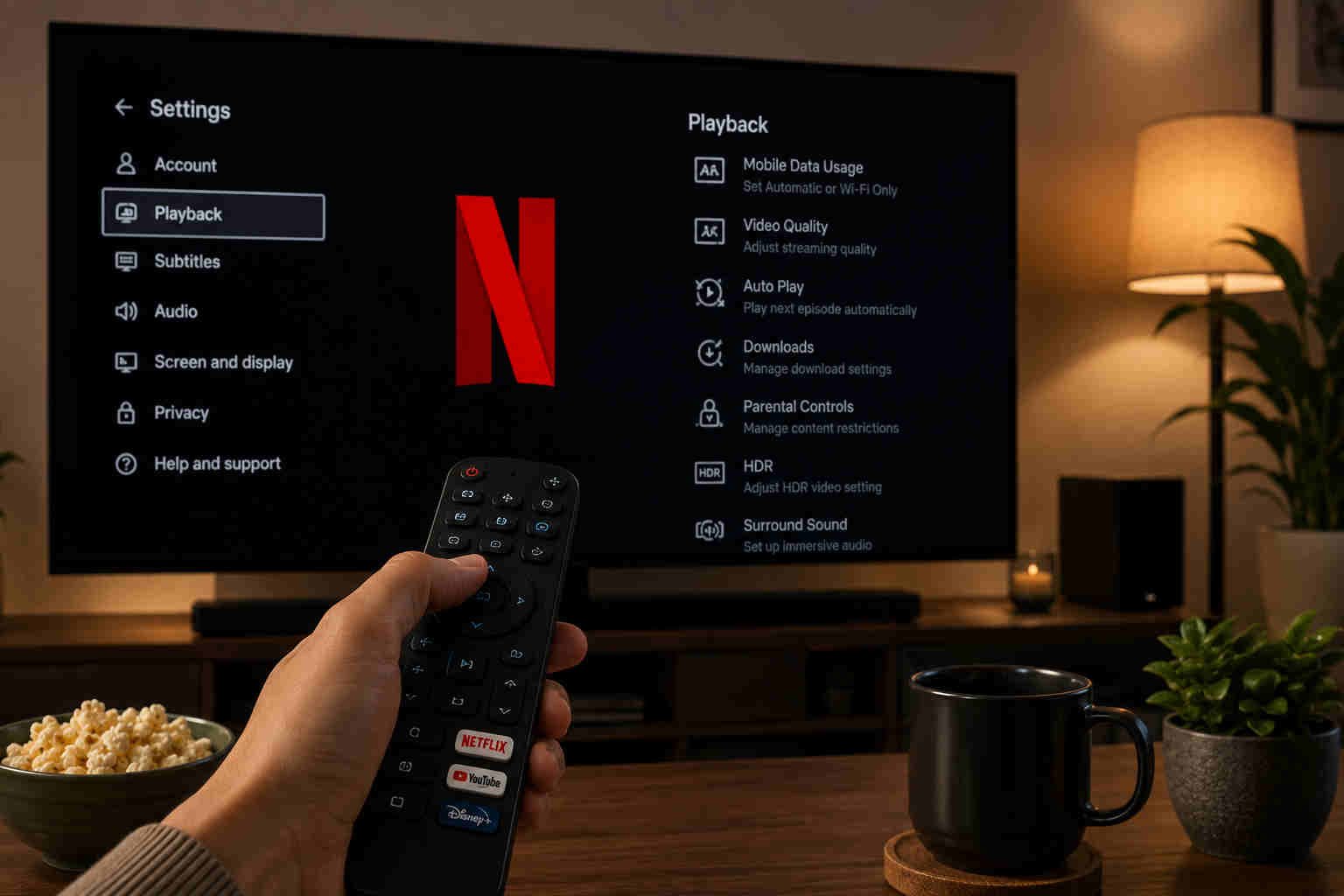
Netflix is one of the world’s most popular streaming platforms but most users do not use it beyond the default.
You are not alone who waste the first 15/20 mins of your watching time just browsing the default content homepage and at last switch off the TV as you are tired to find anything worth watching.
If you’ve ever asked yourself about how to use Netflix more perfectly, it is very simple.
Whatever device you watch Netflix on, say a smart TV, laptop or smartphone, change these few hidden and often-overlooked settings to make streaming smoother, recommendations more accurate and your overall experience much more enjoyable.
Here what you should change today:
- Turn Off Netflix Autoplay Previews: Learn how to do it.
Do trailers automatically play when you stop scrolling? You are not alone. Netflix factory setting or defaults to playing previews on the home screen, which many users find distracting when browsing silently.
In order to disable them. So
Go to Account > Profile > Playback Settings and switch off “Autoplay previews while browsing.”
Result: The trailers will go silently! Your homepage will be cleaner, quieter and easier to navigate.
2. Disable autoplay for the next episode
Watching a series in bulk is great. Until you look at the time and discover you’ve seen three extra episodes without knowing it.just uncheck Autoplay next episode on all devices.
Result: By disabling autoplay, you get more control over your screen time as well as whether you want to continue watching.
3. Make Netflix recommendations (Viewing history) better
If Netflix keeps recommending you shows that you definitely don’t like, then it might be your viewing history. Everything you watch on Netflix – movies and TV shows – helps Netflix get better at recommending movies. By taking off the titles you watched by accident or don’t want to affect your profile, you may slowly start seeing an improvement in your future suggestions.
Go to Account—Profile—Viewing Activity—Hide All (at the Bottom Of The Page).
Result: Customizing your profile for Netflix is an easy way to personalize your Netflix homepage.
4. Modify the subtitle settings on Netflix?
Yes, and a lot of people are unaware how customisable they are. Netflix allows you to adjust the subtitles in terms of font, text size, hue etc.
Go to Account – Profile—Subtitle Appearance
Then change 3 things
- Font to large
- Background to semi tarsparent dark box
- Font to cleaner bol style
Result: making a few adjustments to the subtitle settings could help you to get perfect readability, without blocking pics.
5. Use hidden Netflix category codes
Netflix’s library is larger than what its homepage reveals. However, the platform also has hundreds of hidden categories with content ranging from classic thrillers to award-winning documentaries and independent films to niche categories.
Type-netflix.com/browe/genre on your browser and then search “Netflix hidden codes”
Result: You can find Netflix hidden categories that expose titles that would probably never appear on your homepage.
6. Watch Netflix in Better Video Quality
Go to:
Account—Profile—Playback settings
Change data usage settings from Auto to ‘High’
By selecting a higher video quality, you can enable Select 4K and HD videos when they are available.
Result: update this setting could enhance your watching experience, sharper picture quality.
7. Clean the ‘continue watching’ list
The “Continue Watching” section fills up with shows you gave up on after an episode.
You can de-clutter your homepage by deleting titles of projects/articles that you don’t plan to complete. This way, you can quickly return to content you actually consume.
Final Thoughts
Netflix is designed to keep viewers engaged, but the best experience often comes from taking control of your own settings. Simple changes listed above can completely transform the way you stream.
If you’ve never explored your Netflix settings before, now is the perfect time. These quick adjustments take only a few minutes but can make every movie night more personalised, comfortable and enjoyable.